Tuesday, November 24, 2009

CISCO VPN Client Error message "Reason 442: Failed to Enable Virtual Adapter"

Problem Description: When users will try to establish VPN connection that cannot establish a connection. A pop-up message will apper with error message "Reason 442: Failed to Enable Virtual Adapter". If you are looking at the status bar of the VPN client you will see this pop-up appearing after VPN client was showing "Securing communication channel..."


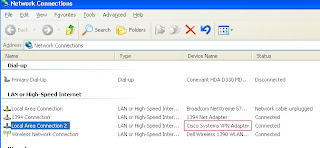
Cause: Problem with the network adapter configuration that VPN client uses, some time it does not get disabled because someone might have closed laptop and it didn't get terminated properly.


Fix: There are usually two things that work for me


Fix1: Disable "Local Area Connection (x)" that is created and used by CISCO VPN Client. Following are steps on how to do this:


Windows XP:


1. Navigate to network connections by selecting Start >Settings > Control Panel > Network Connections


2. Set the view to show you details (Select 'View' menu on the top and select 'Details')


3. Under Device name column one should be able to see which Local Area Connection is used by CISCO Client. Here is a screenshot:


4. Right click on Local Area Connection that is used by VPN client and disable it (if its already enabled).

5. In case Local Area Connection used by VPN client is disabled then select repair.

FIX 2: This has to do with Windows VISTA specificly.

****COMING SOON****


Monday, August 31, 2009

"Arithmetic overflow error converting expression to data type datetime.Native error: 8115 SQLState: 22003" error message in Microsoft SQL

Problem Description: Following error message may be thrown by some applications that uses date formats:

"Arithmetic overflow error converting expression to data type datetime.Native error: 8115 SQLState: 22003"

A application that was working properly earlier can certainly start to throw this error message after some changes were made to the environment. In my usercase a database was moved from one SQL server to another SQL server. Problem started to occur on 13th of month, problem was present till 1st of next month. Problem will come back on 13th of next month.

Cause: Date formats used by service account can cause problem while converting data that is related to calander dates. In my usercase default language for Service Account within Microsoft SQL Server has been changed from one format to another e.g. from English (US_English) to British.


Solution: There are different solutions for it but if a application is already wrote and you only want to resolve the problem of error message following is what you can try.

Note: These steps are written for MS SQL Server 2005 you might want to change it a little for other versions of MS SQL Server
  1. Log on to SQL server that hosts databases in question.
  2. Launch 'SQL Server Management Studio'.
  3. When prompted, log on using the credentials that will allow you to make changes to the SQL server configuration.
  4. In the left pane of 'Microsoft SQL Server Management Studio' expand 'Security' section.
  5. Further expand 'Logins' section.
  6. Select Service Account and right click on it.
  7. Select 'Properties'
  8. On 'Login Properties' screen on right side of the pane check 'Default Language' section.
  9. If 'Default Language' is set to British change it to English (or vise versa depending on your needs)
  10. Select 'OK'

Language and dateformats specific for a service account can also be checked by running 'dbcc useroptions' query analyzer while logged in using service account .

Caution: Please also check with the vendor of the application on what date format is preffered by the application as making changes to date format settings can cause problem with the data that will be stored by service account into the SQL tables.


Tuesday, August 18, 2009

How to install ADSIEdit on Windows 2008 server ?

As many of us have used ADSIEdit in different versions of Windows Platforms, I am sure we all would like to know where ADSIEdit is located in Windows 2008 Server ?

In Windows 2008 ADSIEdit is part of Remote Server Administration Tools (RSAT).

Following are methods to get it installed:

Method one:
1. Open command prompt
2. Run command line 'ServerManagerCmd -i RSAT-ADDC'
3. Once installed you should be able to find it under Administrative Tools

Method two:
1. Open 'Server manager'
2. Select 'Features'
3. Select 'Add Features' on the right side of the pane
4. Select 'Remote Server Administration Tools'
5. Make sure you tick 'Active Directory Lightweight Directory Services Tools'
6. Follow the prompt to install (Select Next)
7. Once installed you should be able to find it under Administrative Tools


How to install .NET Framework on Windows 2008 server?

Following are steps on how to install .NET Framework on Windows 2008 Server

1. Open 'Server Manager'
2. Select 'Features'
3. Right click on Features
4. Select 'Add Features'
5. Select '.NET Framework 3.0 Features'
6. Follow the prompt (Select Next)
7. Once installed select 'Close'

Now you machine is ready with .NET Framework 3.0

Friday, July 24, 2009

Pop-up about "AXWIN frame window" while running trying to run patch SP2, SP3 or SP4 for SQL 2005 server

Problem Description:
Today I came accross an issue while I was trying to patch my SQL 2005 server with SP2. As a check SP2 setup will check for any running services that could cause any trouble while patching up SQL Server. It was suggested by pop-up screen to close or terminate "AXWIN frame window" before continuing. This pop-up screen shows "AXWIN frame window" as a service.

Solution: After scratching my head and going through all services that were running on the machine I have found out that it was "Computer management" console that was open on Services applet was causing this problem. Once I closed Computer Management the check didn't report anything.

Seems like "AXWIN frame window" is what windows uses internally for any window or console to appear on screen.

In other words if you see pop-up about AXWIN Frame Window please check to make sure none of the other windows are open other than the installer itself these could be anything e.g. MMC console, Services.msc, Event Viewer or computer management.

As per the comments from others this solution is not only applicable while patching SP2 but also other service packs e.g. SP4.

Monday, December 8, 2008

After Exchange 2007 SP1 server restart Exchange Services does not start up automatically even though they are set to start automatically.

Problem Description: After Exchange 2007 SP1 server restart Exchange Services does not start up automatically even though they are set to start automatically.

Most of the time services that does not start are “Microsoft Exchange System Attendant” and “Microsoft Exchange Information Store”

Error Messages:

In event log following error messages could be there:

Event Type: Error
Event Source: MSExchangeIS
Event Category: General
Event ID: 5000
Date: 12/8/2008
Time: 11:43:07 AM
User: N/A
Computer:
Description:
Unable to initialize the Microsoft Exchange Information Store service. - Error 0x96e.

Event Type: Error
Event Source: MSExchangeIS
Event Category: General
Event ID: 1121
Date: 12/8/2008
Time: 11:43:07 AM
User: N/A
Computer:
Description:
Error 0x96e connecting to the Microsoft Active Directory.

Event Type: Warning
Event Source: MSExchange EdgeSync
Event Category: Topology
Event ID: 1026
Date: 12/8/2008
Time: 11:41:15 AM
User: N/A
Computer:
Description:
Topology load generated transient exception Could not find any available Domain Controller.. EdgeSync must be able to acquire current Exchange topology data from the Active Directory directory service to properly operate. The Edge Transport server will attempt to load the topology again.


Cause: Services in question has dependency on certain Windows Services and those services took time to start properly.

Solution:

There are multiple things we could try but the one that suited me was to pause start of Exchange Server service(s) on the time of boot up. Following is the registry key that could be used:

1. Navigate to HKEY_LOCAL_MACHINE\SYSTEM\CurrentControlSet\Services\MSExchangeSA\Parameters

2. On the right had side window right click, select New, DWORDValue
3. Name it BootPause
4. Assign BootPause value of 120 (Decimal)
5. Close registry editor

BootPause value 120 will delay the start of SA service by 120 seconds, should you need to raise or lower the value you can change the registry keys.

Please take back-up of the system before attempting any changes to the system. Wrong changes could cause your system to fail. Please follow Microsoft Guidelines on making registry changes.

Thursday, June 26, 2008

Why Microsoft Windows Update options are grayed out?

Problem Description: When user clicks on Windows Update in Windows XP machine all the options in Windows Update are Grayed out.

Cause: This issue can be caused due to different reasons.
Scenario 1. The machine you have is/was a SUS controlled machine.
Scenario 2. Due to Group Policy these options are blocked
Scenario 3. User do not have enough Administrative privilages to make changes.

Resolution:

Scenario 1: The machine you have is/was a SUS controlled machine.
In such scenario First of all we need to determine if the machine is SUS configured. Following is the method to find it:
>Click 'Start' Menu
>>Click 'Run'
>>>Type 'Regedit' and click 'Ok'
>>>>In Registory Editor Navigate to HKEY_LOCAL_MACHINE\Software\Policies\Microsoft\Windows\WindowsUpdate
>>>>>In the right side of the pane look for WUServer and WUStatusServer entries. These entries usually carry the HTTP name of SUS Statistics server (http://SUSServerName)
>>>>>>If you find those variable then easy fix is to export WindowsUpdate registry hive and delete it. Now your machine will not be controlled by SUS any more and you should be able to configure options as you like. If absence of this registry hive User Configurations takes affect.

Scenario 2: Due to Group Policy these options are blocked
In a scenario where these options could be blocked due to Group Policies we can use the folliwing method:

>Click 'Start' Menu
>>Click 'Run'
>>>Type 'gpedit.msc' and click 'Ok'
>>>>Nevigate to 'ComputerConfiguration\Administrative Templates\Windows Components\Windows Update' and make sure that all the settings are set to 'Not Configured'
>>>>>Nevigate to 'User Configuration\Adminitrative Templates\Windows Components\Windows Update' and make sure that all the settings are set to 'Not Configured'

***SPECIAL NOTE****
Change in policy values and of the day is affecting the same registry hive we have discussed above.

Scenario 3: User do not have enough Administrative privilages to make changes.
In this scenario all we need to do is to make the user member of local Administrator group. This can be done 'Computer Manegement' consol or 'Users Accounts' consol from Control Panel.
Thursday, May 1, 2008

How to disable Windows Media Player from displaying full screen video on the second monitor screen ?

Problem Description: From last few days I have realised that when I run any videos in windows media player especially live video feed though internet, on the second screen the same video will be coming in full screen mode and there is no way to stop it, unless you stop Media player from playing the video.

Cause: Its something to do with video drivers, cards and windows combination.

Resolution:
To find this resolution it took me quite some time and I personally found full screen video very annoying.

My machine has Nvidia Quadro FX 540 display adapter, when I was going to the display properties I was not get as many option from NVIDIA as I was expecting . I thought of checking drivers update and to my surprise there was update available on the manufecturer's website.

I have updated drivers and restarted windows. Now I have small NVIDIA icon in the right botto of the screen along the local time display.

Method one: Right click on NVIDIA icon, click Nvidia control panel, near to the bottom there is a section called Video & Television, this has a subsection called Modify Full -Screen video options, click on it and in the right side pane there are two options available, click on "Only Show it in my viewing application" and apply settings. That is all what was needed.

Method two: in case you cannot find Nvidia icon there is another way to get to it, go to Start > Control Panel > Diaplay > Settings > Advanced > NVidia > now you will have the same options what are discussed in the method one above.

Registry editor is disabled on windows machine (Regedit.exe)

Problem Description: User cannot run regedit.exe as command to open registry editor.

Cause: There are different reasons for it please look below for more info

Resolution:
There are different reasons why you could be seeing this issue:

1. Because someone changes the group policy.
To fix this issue run the following command from the RUN box:

REG add HKCU\Software\Microsoft\Windows\CurrentVersion\Policies\System /v DisableRegistryTools /t REG_DWORD /d 0 /f

OR

use group policy editor: gpedit.msc from run box and then look for policy called "Disable registry editing tools " set it to not configured state and restart computer

2. This could also be caused due to different viruses/malware

to fix this there is a nice script from Symantec just use that
http://securityresponse.symantec.com/avcenter/venc/data/tool.to.reset.shellopencommand.registry.keys.html

even I could export my shell commands configuration in registry and send you as a TXT file but I think Symactec tool already does the trick for you.

Visual studio just -in -time debugger pop-up comes time to time

Problem description: Someone installed SQL Server 2005 and Visual Studio 2005, since these are installed they have started to get errors similar to the following:

...............................................................................................

Visual studio just -in -time debugger
...............................................................................................
An unhandled win32 exception occured in ieexplre.exe[528].

posiible debuggers:
New instance of visual studio 2005

.(combo button)set the currently selected debugger as the default.
.(combo button)manually choose the debugging engines

Do u want to debug using the selected debugger?

Yes No
...................................................................................................


Cause: Due to SQL 2005 seems like windows has decided to use Visual Studio debugger for the exceptions instead of sticking to Dr.Watson.

Resolution:
Just_in_time_debugger try to catch exceptions which are not being caught by the program or I could say missing some code. Some times these exceptions does not need to be caught (even though its not good practice for programmers) but because you have Just-In-Time debugger installed/configured it will not only catch it for internet explorer but for other applications as well. In short any application which will have exception which is not being caught you will get this error message. Click on when you see it. You do not need to debug IE.

There are few keys which controls Just-In-Time-Debugger try one of the following:

Please try one at a time only:

1. Go to command prompt using CMD command in run box.
on command prompt run the following Dr.Watson command command and restart computer

drwtsn32 -i

2. Use Regedit and navigate to
HKEY_LOCAL_MACHINE\SOFTWARE\Microsoft\Windows NT\CurrentVersion\AeDebug\Debugger

Export Debugger hive and then delete it.

WARNING: this key might resolve this issue of debugger but It might not help you if you are trying to code something and looking for traping mishandled exceptions.